
We all know the frustration of scrolling through endless menus just to find our favorite live channels. When you finally discover a reliable streaming service, you want a viewing experience that feels smooth, intuitive, and professional. That is exactly why we rely on high-quality media players to organize our digital entertainment.
In this guide, we walk you through the process of connecting your Yeah IPTV subscription to the TiviMate interface. Our team has designed these instructions specifically for viewers in the United States who want to maximize their streaming potential in 2026.
We will cover everything from initial playlist installation to fine-tuning your EPG configuration for better performance. By the end of this walkthrough, you will have a perfectly optimized setup for your preferred streaming devices. Let us help you transform your home entertainment system into a seamless powerhouse using the latest yeahiptv integration methods.
What We Need to Know About Yeah IPTV and TiviMate
Setting up our media environment requires a clear distinction between the content provider and the playback software. While they work in tandem to deliver our favorite shows, they serve entirely different functions in our home entertainment system.
Understanding these roles ensures that we can troubleshoot effectively and maintain a stable connection. By separating the service from the interface, we gain better control over our viewing experience.

How Yeah IPTV Works With TiviMate
The integration of yeahiptv into our streaming device relies on specific data formats provided by our service. TiviMate acts as the bridge, translating these data streams into a user-friendly interface.
We typically connect these services using one of two primary methods:
- M3U Playlist URLs: A direct link to the channel list provided by the service.
- Xtream Codes API: A more robust method requiring a username, password, and server URL.
- EPG Data: A separate link that populates our channel guide with program information.
- Custom Logos: Optional assets that help us identify channels quickly.
What TiviMate Does—and Does Not—Provide
It is important to remember that TiviMate is strictly a media player application. It does not host, store, or provide any video content itself.
When we use the yeah iptv tivimate setup, we are essentially giving the app permission to access our external subscription. The application simply organizes the streams that our provider sends to our device.
Checking That Our Yeah IPTV Subscription Is Authorized
Before we input any credentials, we must verify that our subscription is legitimate. Using an authorized i.p.t.v.premium account protects our device from potential security risks and ensures consistent service quality.
We should always confirm our account status through the official provider portal. This step prevents connection errors and keeps our viewing habits private and secure.
Why We Should Use Official Credentials and Legal Content Sources
Relying on official channels for our i.p.t.v.premium access is a best practice for every user. Unofficial sources often lead to unstable streams, frequent buffering, and potential malware threats.
By sticking to verified yeahiptv credentials, we ensure that our data remains protected. Furthermore, official sources provide better support if we encounter technical difficulties during our daily streaming sessions.
Prepare Our Device and Yeah IPTV Account
Success with our IPTV setup starts long before we open the application on our device. By organizing our credentials and verifying our hardware, we prevent common technical roadblocks. This proactive approach ensures that our experience with yeah iptv remains stable and high-quality.
Compatible Devices for TiviMate in 2026
TiviMate performs best on modern streaming hardware that supports the Android operating system. We recommend using dedicated streaming boxes or smart TVs for the most reliable performance.
- Android TV devices
- Google TV platforms
- Amazon Fire TV sticks and cubes
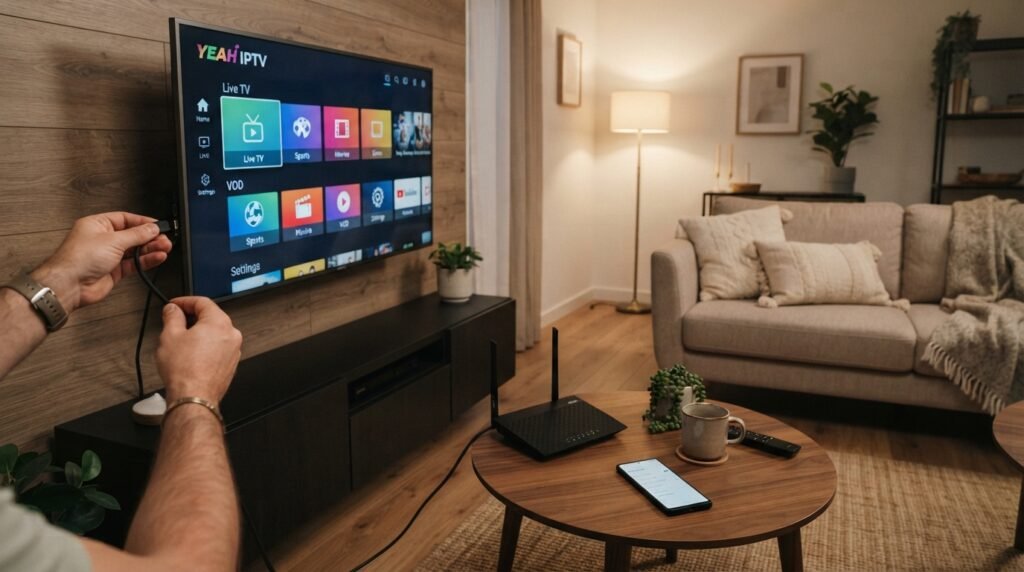
Information to Request From Our IPTV Provider
Before we start the configuration, we must obtain specific connection details from our service provider. Whether we use tvplans iptv or other premium services, these credentials are mandatory for the app to function correctly.
M3U Playlist URL
The M3U URL acts as the primary link to our channel list. We should ensure this link is copied exactly as provided by tvplans to avoid connection errors.
Xtream Codes API Username, Password, and Server URL
Many users prefer the Xtream Codes API for a faster, more organized interface. We need our unique username, password, and the specific server address provided by our service.
Electronic Program Guide URL
The EPG URL provides the schedule data for our channels. Having this link ready allows us to see what is currently playing and what is coming up next.
Network, Storage, and Remote-Control Checks Before Installation
A stable internet connection is vital for streaming high-definition content without buffering. We should verify that our device has enough free storage space to handle the cache generated by our playlist data.
Finally, we must ensure our remote control is fully functional and paired with the device. A responsive remote makes navigating the TiviMate interface much easier during the initial setup process.
Step 1: Install TiviMate on Our Streaming Device
Setting up our streaming environment begins with the installation of the TiviMate application on our chosen device. A clean installation ensures that our yeah iptv tivimate configuration remains stable and responsive during daily use.
Install TiviMate on Android TV and Google TV
For users with Android TV or Google TV hardware, the process is straightforward. We simply navigate to the Google Play Store from our home screen.
We search for “TiviMate” using the search icon. Once we locate the official application, we select the install button to add it to our device library.
Install TiviMate on an Amazon Fire TV Device
Amazon Fire TV devices require a slightly different approach since the app is not always found in the standard store. We typically use the Downloader app to sideload the official APK file.
After opening Downloader, we enter the official TiviMate URL to initiate the download. Once the file finishes downloading, we follow the on-screen prompts to complete the installation process.
Sign In to the Correct TiviMate Version
After launching the app, we must ensure we are signed into the correct version to match our subscription needs. Choosing the right version is vital for a successful yeah iptv tivimate experience.
Understanding TiviMate Free and Premium Features
The free version of TiviMate allows us to test basic playback functionality. However, the premium version unlocks essential features like multi-view, recording, and advanced EPG customization.
We should verify our account status within the settings menu. This ensures that all purchased features are active before we begin adding our playlists.
Grant Only the Permissions TiviMate Needs
Security remains a top priority when we configure our streaming setup. During the initial launch, the application will request access to our device storage.
We should grant only the permissions that are strictly necessary for the app to function. By limiting access, we maintain better control over our device privacy while optimizing our yeah iptv tivimate performance.
Step 2: Start the Yeah IPTV TiviMate Setup
We are now ready to bridge the gap between our subscription credentials and the streaming interface. This phase requires precision to ensure that our media library connects correctly to the application.
Open the Playlist Setup Screen in TiviMate
To begin, we launch the application on our streaming device. We navigate to the “Settings” menu, which is usually represented by a gear icon. From there, we select “Playlists” and choose the option to “Add Playlist.” This action opens the configuration screen where we input our specific service details.
Choose Between M3U and Xtream Codes API
The application offers two primary methods for connecting our service. Choosing the right one depends on the information provided by our subscription service.
- M3U Playlist: This method uses a direct URL link to our channel list. It is a universal standard for streaming.
- Xtream Codes API: This is often the preferred method for a yeah iptv setup. It provides a more stable connection by using a username, password, and server URL.
- Performance: Xtream Codes usually loads channel categories and EPG data faster than the standard M3U link.
Enter Provider Details Without Formatting Errors
Entering our credentials accurately is the most critical part of the yeah iptv tivimate configuration. Even a minor typo can prevent the playlist from loading.
Checking HTTPS Links, Capitalization, and Special Characters
We must ensure that our server URL starts with “https://” unless our provider specifies otherwise. We should pay close attention to capitalization, as these links are case-sensitive. Special characters must be entered exactly as they appear in our welcome email to avoid authentication failures.
Confirming That the Server URL Includes the Correct Port
Many providers require a specific port number at the end of the server URL. We must verify that the colon and the port number are included correctly. If the URL is missing this component, the application will fail to reach the server.
Save the Connection and Wait for the Playlist to Load
Once we have verified all fields, we select the “Next” or “Save” button. The application will then attempt to reach the server and download our channel list. We should wait patiently while the progress bar completes, as this ensures all data is synchronized properly.
Step 3: Add a Yeah IPTV M3U Playlist
Adding our M3U playlist is the next logical step in configuring our streaming setup. This process bridges the gap between our subscription provider and the interface, allowing us to access live content directly.
Enter the Yeah IPTV M3U Playlist URL
We must navigate to the playlist configuration menu to input our specific credentials. We will select the M3U option and carefully type the URL provided by our service. It is vital to ensure there are no typos, as even a single missing character will prevent the connection from establishing.
Name the Playlist So We Can Identify It Easily
Once the URL is entered, we should assign a clear, descriptive name to the playlist. Using a label like “yeahiptv” helps us distinguish this source from others in our library. This simple step saves time when we need to manage or update our subscriptions later.
Wait for Channels, Groups, and Logos to Synchronize
After saving our settings, the application will begin fetching data from the server. We must allow the system enough time to download the following elements:
- Full channel lists
- Categorized channel groups
- High-resolution channel logos
- Metadata for streaming quality
What to Do When the Playlist Loads Only Partially
Sometimes, we may notice that only a few channels appear after the initial sync. If this happens, we should verify our internet connection or check if the provider server is currently undergoing maintenance. Refreshing the playlist manually often resolves these minor synchronization gaps.
Repeat the Process for Authorized Services Such as Honeybee IPTV or Sapphire IPTV
We can easily add multiple subscriptions to our device to expand our viewing options. By following the same steps, we can integrate services like honeybee iptv or sapphire iptv into the same interface. This consolidation allows us to switch between different providers without leaving the application.
How to Keep Yeah IPTV, Yeah TV, and Other Playlists Separate
To maintain an organized library, we should use unique names for every service we add. For instance, keeping our yeahiptv subscription distinct from a secondary yeah tv account prevents confusion during daily use. We recommend the following naming conventions to keep our dashboard clean:
- Use clear prefixes for each provider
- Group similar services by region or genre
- Regularly audit our list to remove inactive sources
- Assign distinct icons if the interface supports custom branding
Step 4: Connect the Electronic Program Guide
Connecting the Electronic Program Guide (EPG) is the final step to making our streaming experience feel like traditional cable. A functional guide allows us to browse current and upcoming shows easily within our yeah iptv tivimate setup. Without this data, our channel list remains a simple grid without context or scheduling information.
Open the EPG Settings for the Correct Playlist
To begin, we must navigate to the specific settings menu for our loaded playlist. We open the TiviMate side menu and select “Settings,” then proceed to “Playlists.” From there, we tap on our active service to reveal the configuration options for that specific connection.
Enter the Provider’s EPG URL
Once inside the playlist settings, we look for the “EPG” section. We must input the exact URL provided by our service provider to pull the program data. It is vital to ensure there are no typos, as even a single incorrect character will prevent the guide from populating.
- Select the “EPG” tab within the playlist menu.
- Choose “Add EPG Source” to open the text entry field.
- Carefully type or paste the URL provided by our service.
- Confirm the entry to initiate the initial data download.
Map EPG Data to Channels When Automatic Matching Fails
Sometimes, the system may not automatically link the guide data to the correct channel. If we notice missing program titles, we can manually assign the EPG source to specific channels. We simply long-press the channel name, select “Assign EPG,” and choose the correct program from the list provided by our yeah iptv tivimate subscription.
Correcting Time Zones and Daylight-Saving Settings in the United States
Viewers in the United States often encounter timing issues if the server time does not match their local region. We can adjust the “Time Offset” setting within the EPG menu to align the broadcast schedule with our local clock. If the guide appears off by one hour, we should verify that our device settings account for Daylight-Saving Time correctly.
Set an Automatic EPG Update Schedule
To keep our program information current, we should configure an automatic update schedule. We navigate to the “EPG” section in the main TiviMate settings and set the update interval to every 12 or 24 hours. This ensures that our guide data refreshes in the background without requiring any manual intervention from us.
Step 5: Configure TiviMate Playback and Viewing Settings
Optimizing our TiviMate playback settings ensures a smooth and professional streaming experience. By adjusting these internal configurations, we can tailor the application to match our specific hardware capabilities and personal viewing preferences.
Select a Reliable Video Decoder
The way our device processes video streams significantly impacts performance. We must choose the right IPTV decoder settings to prevent stuttering or visual artifacts during high-definition broadcasts.
When to Use Hardware Decoding
Hardware decoding is the default choice for most modern streaming devices. It offloads the processing work to the device’s dedicated graphics chip, which saves battery and reduces heat. We should keep this enabled for the best performance on Android TV and Fire TV sticks.
When Software Decoding May Resolve Playback Problems
If we encounter black screens or audio-video desync, switching to software decoding often provides a solution. This method uses the device’s main processor to handle the stream. While it may consume more power, it is highly effective for troubleshooting stubborn channel playback issues.
Adjust Buffer Size, Auto Frame Rate, and Audio Options
Managing our buffer size is essential for maintaining a stable stream over varying network conditions. A larger buffer helps prevent freezing during minor internet fluctuations. Additionally, enabling auto frame rate allows the app to match the output frequency to the source content, resulting in smoother motion.
Configure Subtitles, Closed Captions, and Audio Tracks
TiviMate offers robust support for multi-language audio and various subtitle formats. We can set our preferred language defaults within the settings menu to ensure that our favorite shows always load with the correct audio track. This customization makes managing EPG viewing options much more efficient for international content.
Set Channel Logos, Favorites, and Group Visibility
A clean interface makes daily navigation much faster. We can hide unused channel groups to declutter our guide and ensure that only the content we actually watch remains visible.
Creating a Focused Favorites List for Faster Navigation
Building a curated list of our most-watched channels is the best way to improve our workflow. We can mark channels as favorites to keep them at the top of our guide. This simple step saves us time and keeps our preferred entertainment just a click away.
Step 6: Organize Multiple IPTV Services and Devices
Managing multiple streaming services requires a structured approach to keep our interface clean and functional. By grouping our content effectively, we can navigate between different providers without confusion or delay.
Manage Separate Playlists in TiviMate
TiviMate allows us to add multiple playlists, which is perfect for users who subscribe to several services. We can label each playlist clearly to ensure we know exactly which source we are accessing at any given time.
Organize Services Such as TVPlans IPTV, TVPlans, and MOMIPTV
When we integrate services like tvplans iptv and tvplans, we should keep them distinct within the app. Similarly, adding providers such as momiptv, honeybee iptv, or sapphire iptv requires careful naming to avoid overlap in our channel lists.
Verifying Provider Names, Domains, and Account Details
Before finalizing our setup, we must verify that every domain and login credential is correct. Double-checking these details prevents connection errors and ensures that our subscription data remains accurate across all platforms.
Use TiviMate Profiles for Different Viewers
We can create custom profiles to tailor the viewing experience for different family members. This feature keeps favorites and recent channels organized separately for each user, providing a personalized touch to our home entertainment.
Synchronize Settings Across Our Authorized Devices
Maintaining consistent settings across all our devices is essential for a smooth experience. We can back up our configuration and restore it on other authorized hardware to save time on manual setup.
Understanding Device Limits and Simultaneous-Stream Rules
It is vital to remember that most providers enforce strict limits on how many devices can connect at once. We must respect these simultaneous-stream rules to avoid account suspension or service interruptions while enjoying our content.
Step 7: Fix Common Yeah IPTV TiviMate Problems
When our streaming experience hits a snag, knowing how to resolve common issues is essential for uninterrupted viewing. Most technical difficulties are minor and can be fixed with a few simple adjustments to our settings or network configuration.
Resolve “Playlist Could Not Be Loaded” Errors
Recheck the URL, Credentials, and Subscription Status
If we see a loading error, the first step is to verify that our login details are correct. We should ensure that the M3U URL or Xtream Codes API credentials provided by our service are entered without any hidden spaces or typos.
Test the Playlist on a Trusted Network
Sometimes, local network restrictions or firewalls block the connection to our yeah iptv service. We recommend testing the playlist on a different network, such as a mobile hotspot, to determine if the issue is specific to our home internet provider.
Fix Buffering, Freezing, and Low-Quality Video
Test Internet Speed and Ethernet or Wi-Fi Stability
High-quality streaming requires a stable and fast internet connection. We should run a speed test to confirm our bandwidth meets the requirements for high-definition content, ideally using a wired Ethernet connection for the best results.
Reduce Network Congestion and Restart Network Equipment
Too many devices on one network can cause significant lag. We should restart our router and modem to clear the cache and reduce congestion, which often resolves freezing issues with our yeah tv stream.
Restore Missing Channels, Logos, or EPG Listings
If channels or logos disappear, we can force a manual update within the playlist settings. Navigating to the EPG section and selecting the update option usually refreshes the data and restores missing information to our guide.
Correct Audio Sync, Black Screens, and Decoder Errors
Audio sync issues or black screens often stem from incompatible video decoders. We can resolve this by switching between hardware and software decoding options in the playback settings menu to find the configuration that works best for our device.
Handle Expired Links, Server Outages, and Provider-Side Issues
When to Contact Yeah IPTV, TVPlans.org, TVPlan, or Another Authorized Provider
If we have exhausted all local troubleshooting steps, the problem might be on the server side. We should reach out to support teams at tvplans org, tvplans.org, or our specific tvplan provider if the service remains unavailable after several hours.
Clear TiviMate Cache Without Deleting Working Account Data
Clearing the application cache can fix many performance glitches without removing our saved playlists. We can navigate to the device settings, find the app manager, and select the option to clear the cache, which keeps our account data intact while refreshing the interface.
Conclusion
Achieving a seamless entertainment experience requires careful attention to detail during the initial configuration. By following our guide, we have successfully navigated the installation of TiviMate, integrated our credentials, and synchronized the program guide for a smooth yeah iptv tivimate experience.
Reliable performance relies on maintaining an authorized subscription and using compatible hardware. We must ensure our network settings remain stable to support high-quality streams. When we prioritize these technical foundations, we gain full control over our digital media library.
Troubleshooting remains a vital skill for every user. We can resolve most playback issues by clearing the cache or verifying our connection details without disrupting our saved account data. Whether we use i.p.t.v.premium or other services, keeping our playlists organized prevents unnecessary clutter.
We encourage readers to explore the advanced features within TiviMate to customize their viewing environment. Consistent maintenance of our streaming setup ensures that our favorite content stays accessible at all times. We are now ready to enjoy a personalized and efficient television experience on our preferred devices.